

How it works
How a day runs at your center.
You need a sign by your door, a screen in each room, and the phones families already have.


By the clock
A day at Little Acorns Preschool.
-
Morning · Front desk
An ordinary day, or an early closing
The center’s calendar says which. On a day you close early, pickup and the cutoff for changes move with it, and families see it in the app.
-
Until your cutoff · Families
Grandma Rosa is collecting today
A family files the change in the app before your daily cutoff: for today, for a day ahead, or on repeat (“every Friday”). It is on the front desk’s screen before anyone arrives.
After the cutoff, the app tells them to call you, or lets them ask you, if you take late requests.
-
11:20 AM · Front desk
An early pickup, called ahead
Leo has an appointment at 11:30. Ten minutes before (you choose how many), he is called to the front desk, so he is ready when his parent walks in.
-
Up to four hours before pickup · The door
Families check in as they arrive
They scan the sign by the door, type the code under it, or tap I’m here. Each family gets the next number, in the order they came.
-
The room
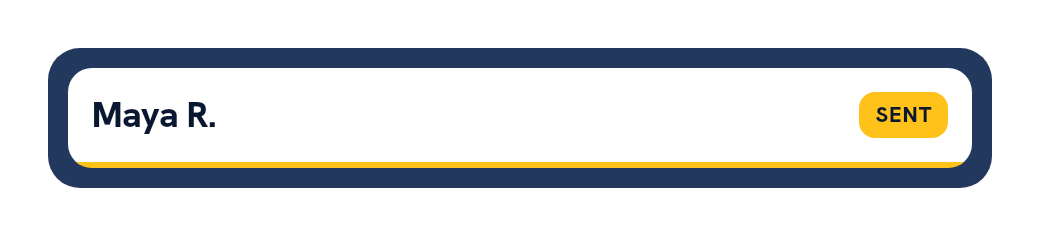
The name lights up, and staff tap Send
The room’s board shows the child’s first name and last initial, and nothing else about the family. Room staff tap Send as the child heads to the door.
-
The door
Staff hand each child over
An adult the family named for today shows photo ID, and staff note a few characters of it, never the whole number. Then the child is checked out to them.
-
If you need to stop
HOLD ALL pauses every room
A director presses it, and every room’s screen says not to send anyone. Families already at the door keep their place in line.
-
End of the day
Close the day once every child has gone home
Each child must have gone home, be absent or be with the front desk before the day closes. A director can close it anyway and give a reason.

Roles
Who does what.

Your team
Director
Sets up the center, records custody orders, can pause every room at once, and reads the daily report.
Front desk
Runs the pickup queue, takes a family’s change by phone, checks IDs and checks a child out from the desk.
Room staff
Open their room’s screen in any web browser and tap Send. They don’t need permission to run the queue.
Families, and the adults they name
Families
Check children in and out, report absences, name the other adults who may pick up, and tell you about changes.
Adults a family names
Check in with their own login for the children they are named for, or give their name at the door and show photo ID.
Setting up
Set up in the browser.
A director sets it all up in the browser under Set up. There is nothing to install.
-
Add your rooms
Name each room, in the order you walk them. Move a child to another room at any time.
-
Load children and families
Upload one spreadsheet. Age group and room columns are read as they are, and you see a preview before a single email goes.
-
Print a sign and a card
A sign for each door you use, and a family card with its own number for each family.
-
Choose your times
Your pickup time, the daily cutoff for changes, and whether families can tap I’m here.
-
Invite your staff
One permission at a time. Room staff need none to use their board.

Who we serve
For every kind of early childhood program.
Preschools
Check children in and out, see who is in each room, message families and keep the day’s record. Staff check each child out to an approved adult.
Read how it works
Childcare centers
Children are checked in at drop-off and checked out through the day, one at a time. Early pickups, absences and families’ changes ahead are on the same record.
Read how it works
Montessori
A mixed-age room is just a room: each child is in the room they spend the day in, whatever their age. Check-in, pickup and messages work as they do at any center.
Read the FAQ
Church and faith-based programs
Part-day programs use one pickup time a day, early pickups and the changes families send ahead. Each family names the adults who pick up, and a court order holds a child for the director.
Compare plans
Co-ops and parent-run preschools
A parent who helps in the room can also be on the staff, with only the permissions the co-op gives them. Families still check their own children in and out.
Read how it works
In-home child care
For a small group in your home, use the basics: check-in and check-out, safe pickup and messages to families, which come with every plan. Rooms, ratios and a door kiosk are built for centers, and you can leave them off.
Compare plansThe rest of the day
What else it does.
Check-in, check-out and the day’s record
Staff check each child in at the door with who brought them and when, and families can check in from the app if the center allows it. Print the day’s record by room or by child.
Absences and expected days
Families report an absence for a day or several, with a reason if they choose, up to the center’s cutoff. The center sets each child’s expected days, so the office knows who isn’t due today.
Emergency contacts
Families list who to call, in order, when a parent can’t be reached, and the office can enter a paper form. An emergency contact can’t take a child home.
Rooms and live ratios
Staff mark which room they are in, and each room’s ratio is shown against the children signed in, with a warning at and over ratio. A daily ratio report comes with it (the Ratios & staff time add-on).
Door kiosk
A tablet by the door lets a parent find their family with the last four digits of their phone. Staff still check every child out. A kiosk never releases a child (the Kiosk add-on).
Staff clock-in
Staff clock in when they arrive and out when they leave, from the app or the website, or a colleague does it for them; a helper without a login is clocked in by a colleague on site. It is a record of time on site the center can download for its own payroll, never pay itself. Part of the Ratios & staff time add-on.
Enrollment
Forms families fill in and sign.
An add-on for centers: the form, its policies and each year’s re-enrollment, online.
Enrollment forms
Families fill in your enrollment form and sign your policies online, in the app or a browser. The center reviews each form, sends it back if something is missing, and accepts it, and the child is added. Each year you can ask families to re-enroll, with last time’s answers filled in.
When things go wrong
When the day doesn’t go to plan.
The internet goes down
Staff phones and tablets keep working. The check-outs they tap wait on the device and send when the connection comes back. You can also print a paper roster as a backup.
A parent forgot their phone
The front desk types their family card number, or finds them by name, and they join the same queue. A center can switch this on or off.
A family card is lost
Retire it and print a new number. The old card stops working at once.
An evacuation
Use reunification to take a roll call by room. Each parent gets a pass on their phone, staff check ID, and only a linked parent can pick up. You can run it as a drill.

Questions
Questions directors ask.

Does it replace our sign-in and sign-out sheet?
No. It keeps a record of who checked each child in at drop-off and out at pickup, which you can print by room or by child. It isn’t a licensing sign-in sheet. Ask your licensing agency what your sheet must show.
We have half-day and full-day pickup.
You set one pickup time a day. Families can check in from up to four hours before it until you close the day, and a family books an earlier pickup for its own day, with a time.
Do room staff need the app?
No. A room’s screen runs in any web browser, on a smartboard, a tablet or a laptop, and staff tap Send there.
What does a family need?
The Sunporch app, on Google Play now and coming soon to the App Store. Without it, a phone’s browser: scanning the sign with the camera opens a page where a signed-in parent checks in.
See it with your own rooms.
In a 20-minute screen share we’ll check a child in, show you the room lists and the day’s record, and check the child out at the door.